Dockerfile

Passionate DevOps engineer with a strong background in automating and streamlining software development processes. Experienced in designing, implementing, and managing robust CI/CD pipelines, infrastructure as code, and cloud-based solutions. Dedicated to optimizing system performance, scalability, and reliability through continuous integration, deployment, and monitoring. Adept at collaborating with cross-functional teams to drive innovation and deliver high-quality software solutions. Committed to staying up-to-date with the latest industry trends and technologies to ensure efficient and effective DevOps practices. Let's build and deploy together!
To write a Dockerfile, follow these steps:
Choose a base image: Start by selecting a base image that provides the foundation for your Docker container. You can choose from a wide range of base images available on Docker Hub, such as Ubuntu, Alpine, or specific language runtimes like Node.js or Python.
Define the working directory: Use the WORKDIR instruction to set the working directory inside the container where your application code will be placed. This makes it easier to manage and reference files within the container.
Copy your application code: Use the COPY instruction to copy your application code from the host machine to the container. Specify the source directory or file on the host and the destination directory inside the container.
Install dependencies: If your application requires any dependencies or packages, use the appropriate package manager (e.g., apt-get for Ubuntu-based images, apk for Alpine-based images) to install them. You can use the RUN instruction to execute commands inside the container.
Expose ports (if needed): If your application listens on a specific port, use the EXPOSE instruction to specify the port number. This doesn't actually publish the port, but it serves as documentation for users of your container.
Define the startup command: Use the CMD or ENTRYPOINT instruction to specify the command that should be executed when the container starts. This could be the command to run your application or a script that sets up the environment.
You can ue multiple more command used in Dockerfile as per requirement.
Now lets see an example to get it more clear using hands-on
Our task is to Install tomcat webserver on Ubuntu??
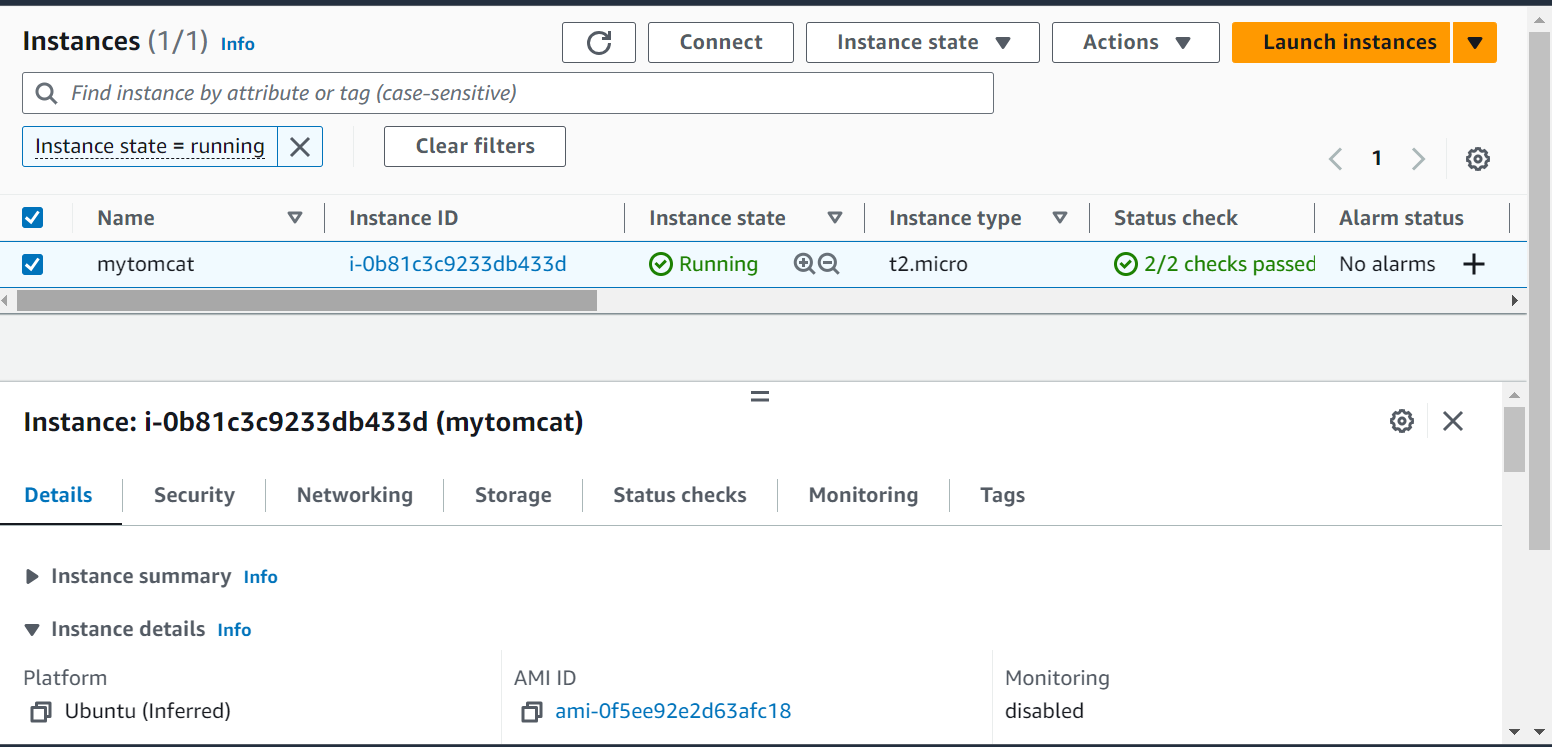
First create a AWS EC2 account by selecting ubuntu as discussed in previous blogs:
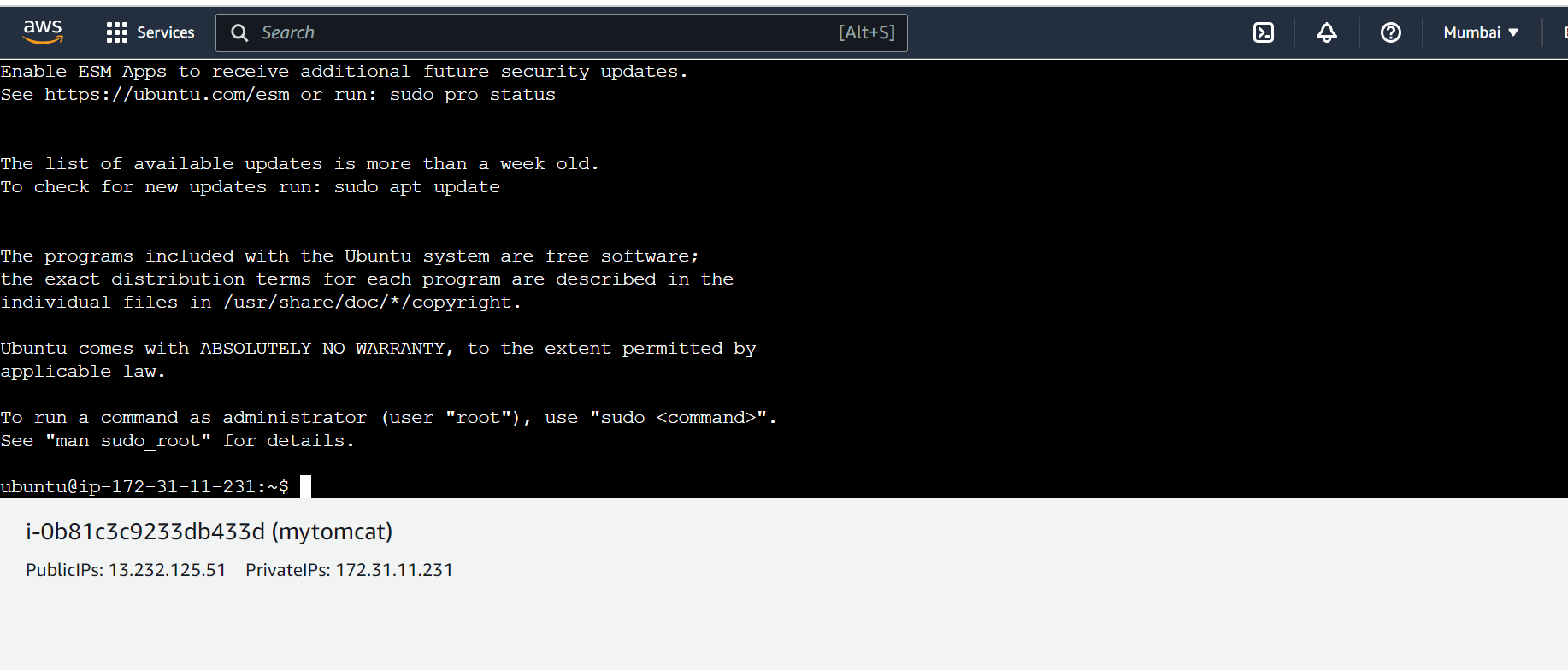
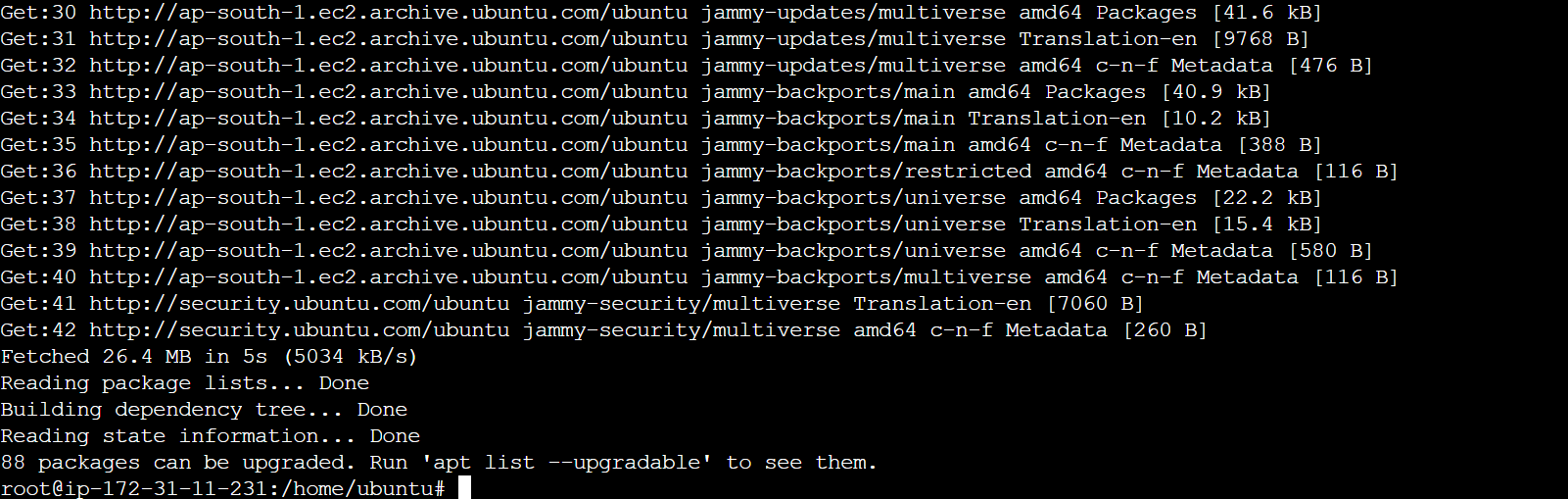
Use below command first to update all the packages already present on ,machine
sudo apt update
First of all install docker on your ubuntu system using below command
sudo apt install docker.io -Y
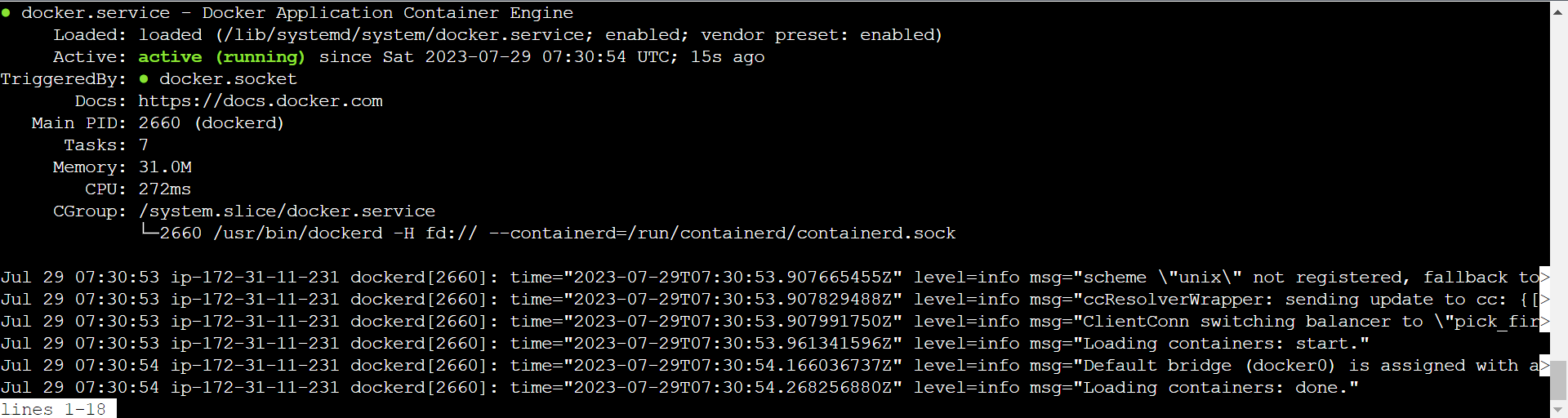
Now check whether docker is installed and active and rnning or not by using below command
service docker status
Now create your first Dockerfile using vi command
vi Dockerfile
FROM ubuntu:latest
RUN apt update RUN apt install default-jdk -y
RUN mkdir /opt/tomcat
WORKDIR /opt/tomcat
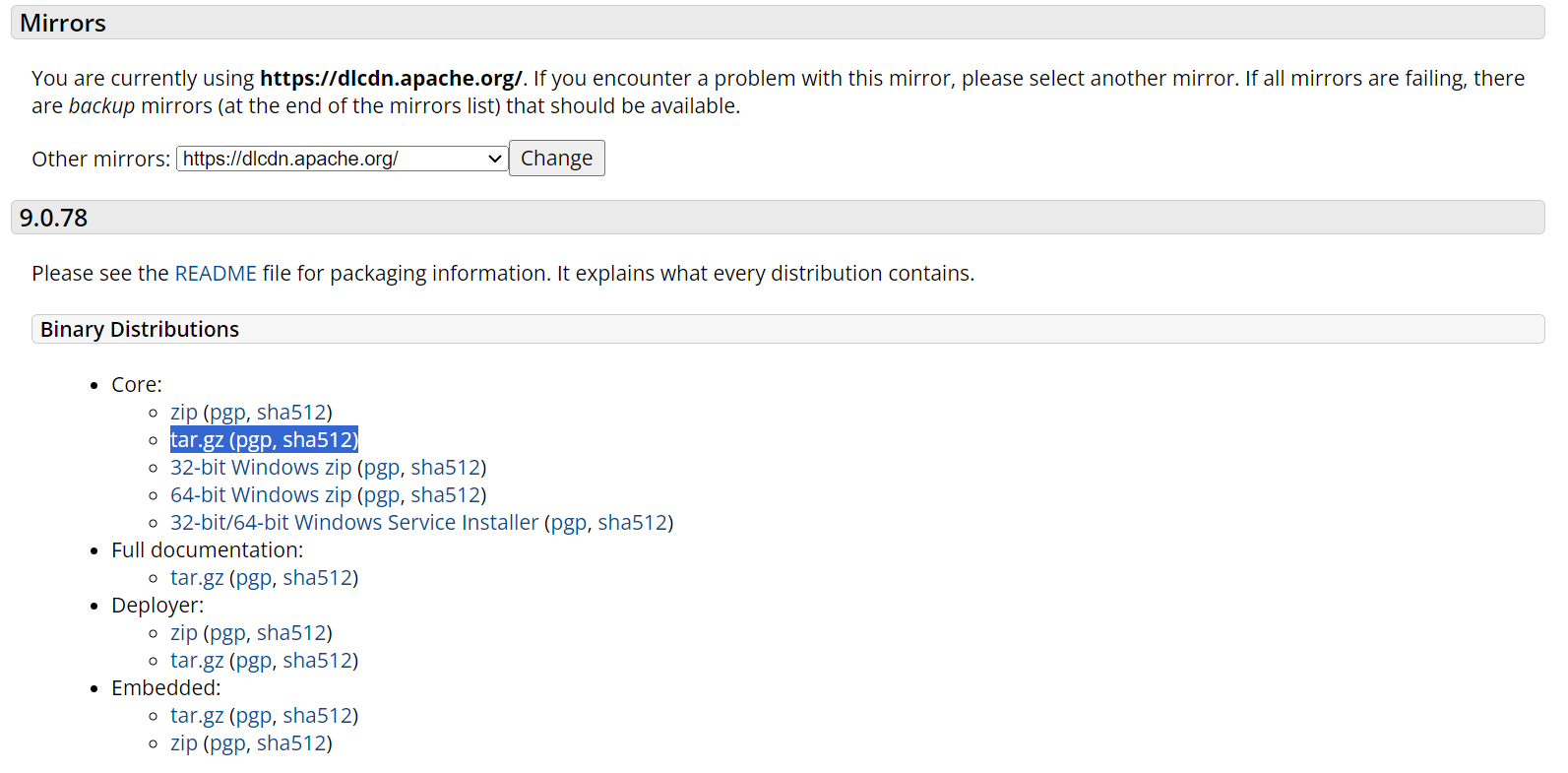
ADD https://dlcdn.apache.org/tomcat/tomcat-9/v9.0.78/bin/apache-tomcat-9.0.78.tar.gz .
RUN tar -xzvf apache-tomcat-9.0.78.tar.gz
RUN mv apache-tomcat-9.0.78/* /opt/tomcat
EXPOSE 8080
CMD ["/opt/tomcat/bin/catalina.sh", "run"]
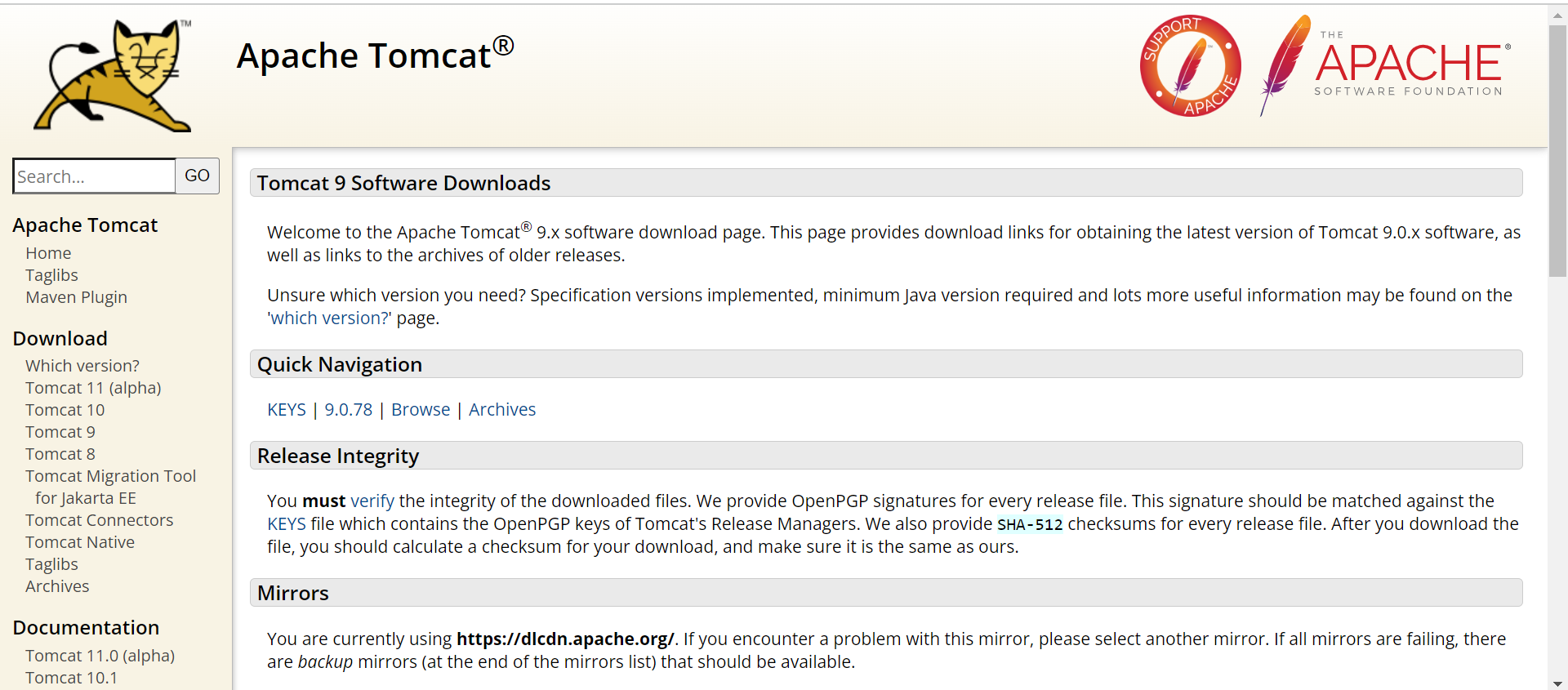
copy the below url to ADD it into the Dockerfile so that it can download the package from that URL link
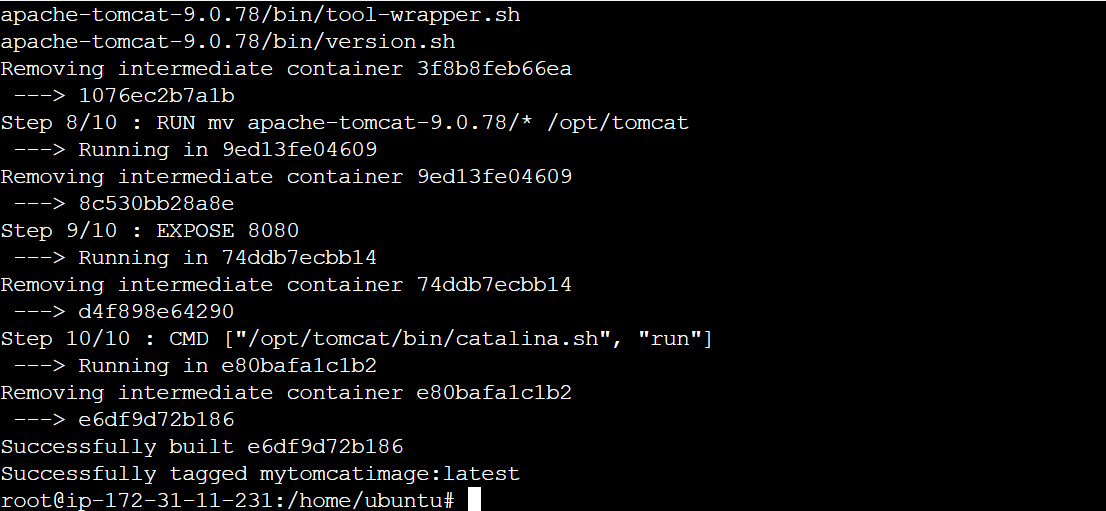
Now when your Dockerfile get ctreated ow build a docker image out of it.
docker build -t mytomcatimage .
It will run all the step written in Dockerfile step by step
Now we have to make a docker container using the latest custom image which we have created just now.
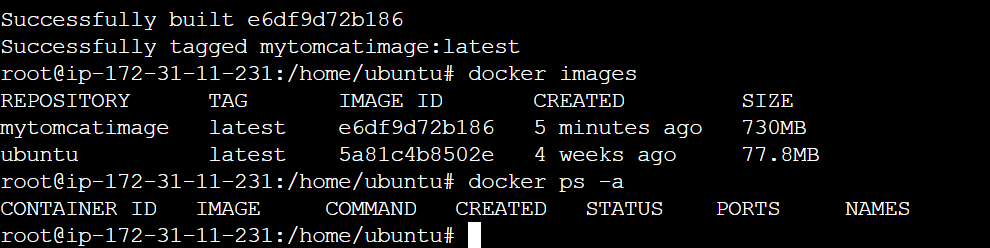
docker run -d --name tomcat-container -p 8081:8080 mytomcatimage
-p here used to expose port so that it can be externally accessible at 8081 port also for that we hav to expose that port in security in EC2 instance which we have created. Steps to expose port have been shown below.
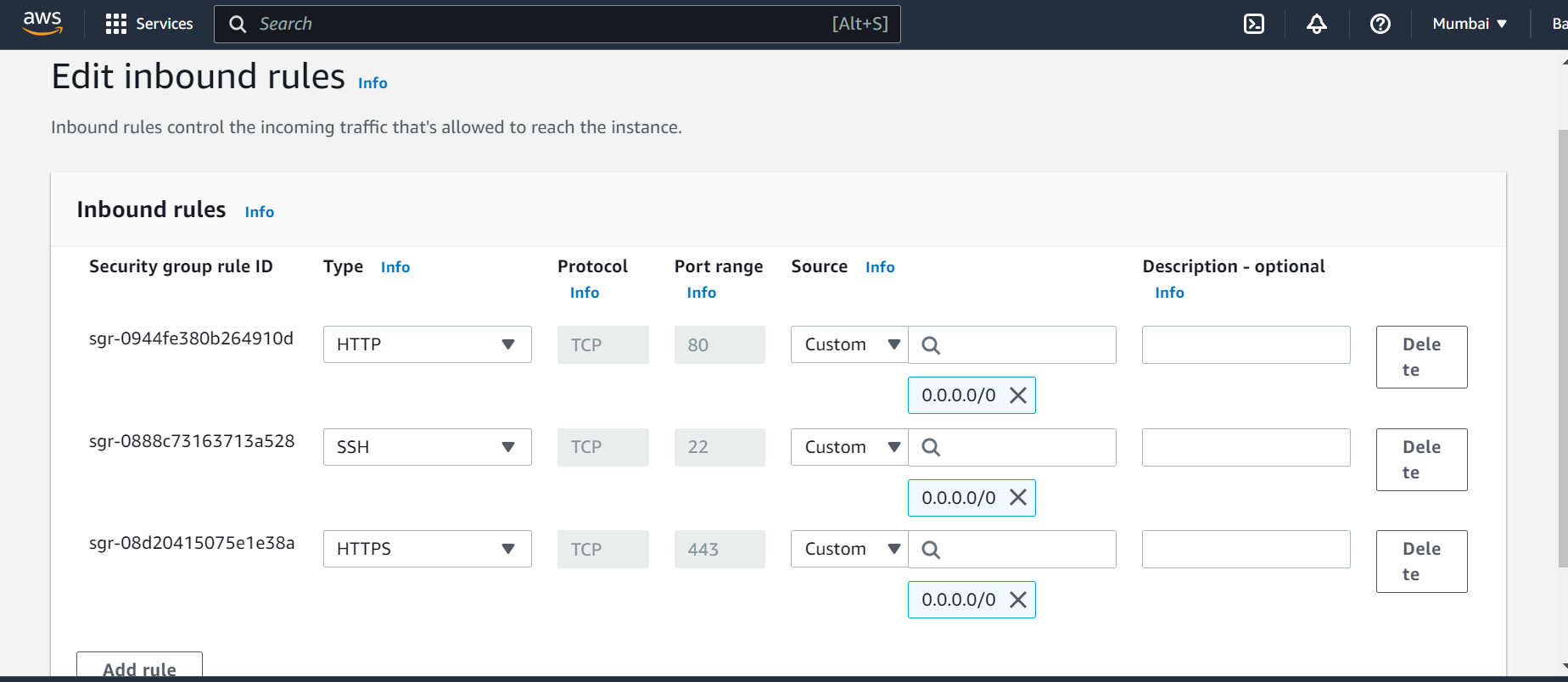
Expose port 8080 and 8081 in security rule by editing inbound rules Sources Anywhere
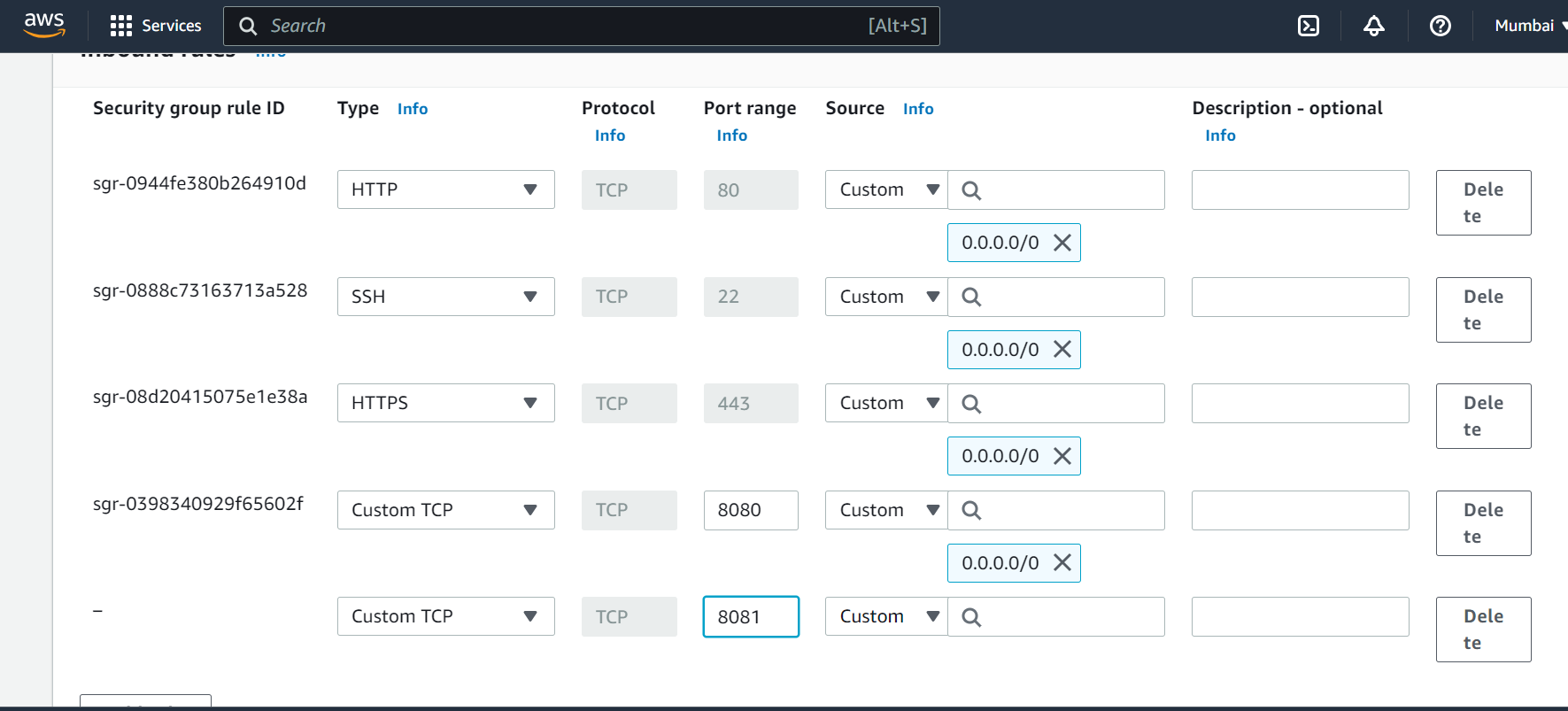
After running command to create container from dock image we will see
docker run -d --name tomcat-container -p 8081:8080 mytomcatimage

Now copy public ip from your EC2 instance and expose it to 8081 port you will see the tomcat running at this port.
13.232.125.51:8081
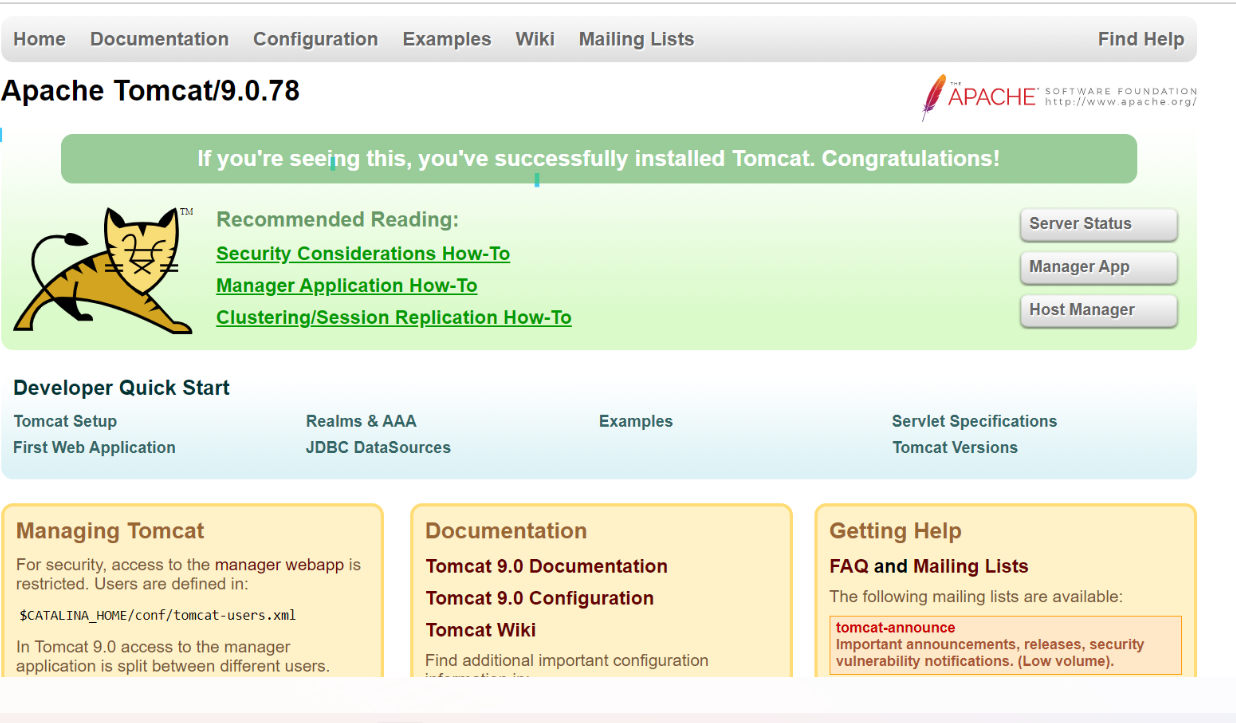
Heyyyyyyy!!!!!!! You have Suucessfully written your Dockerfile and created docker images through it and run a docker container out of it.
THANK YOU.......!!!!!!!!!!
KEEEEP LEARNING KEEEP GROWWWWING !!!!!!!!!

